To create a Hizo account is easy. It takes only a few quick steps and you don’t need a computer for it. The entire process is completed within the app on your smartphone.
Getting Started
To sign up on the Hizo app, you only need an email address you can verify. This step-by-step guide shows you exactly how to create a Hizo account—from downloading the app to verifying your email address.
How to Create your Account
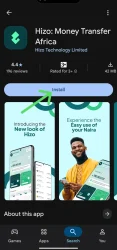
Download the Hizo app from Apple App Store (iOS) or Google Play Store (Android).
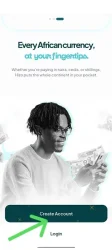
2. Once you’ve installed the app, open it and click on ‘Create account’.
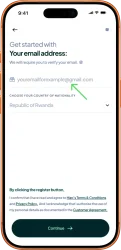
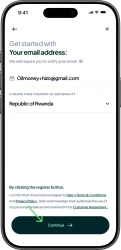
3. Enter your email address—one you can verify.
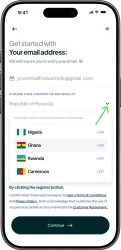
4. On the same screen where you entered your email address, click on the dropdown arrow and select your nationality. It must be the country for which you have a valid government-issued ID.
5. After you’ve entered your email and selected your country, click on continue.
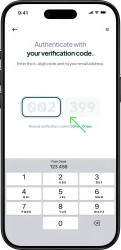
6. When you click on ‘Continue’, a 6-digit verification code will be sent to your email address for confirmation. Enter that code in the field that appears on your screen.
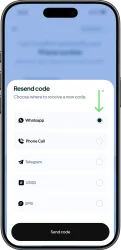
7. If you did not receive the code in your email inbox, select ‘Resend code’ and choose another platform where you’d like to receive it; then click on ‘Send code’.
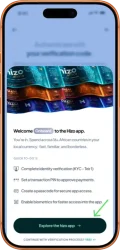
8. Once you click on ‘Send code’, a new code will be sent to the platform you chose instantly. Type in the code as in Step 6 above. After you’ve done that, a new screen will appear, prompting you to ‘Explore the Hizo app’.
This means you’ve completed your sign up on the Hizo app. Now you can either explore the app or continue with your account/KYC verification process. To send money in your local currency and enjoy other Hizo features, you must complete KYC verification process.
Need Help?
If you experience any problem in the course of creating your account, our Customer Support team is here to help. Reach out to us at [email protected] and we’ll be happy to assist you.