KYC means ‘Know Your Customer’. It’s how Hizo verifies your identity and confirms that you are who you say you are. After creating an account, you must complete your KYC verification to gain full access to all of Hizo’s services.
KYC Verification
KYC verification on Hizo has 2 simple levels: Tier 1 and Tier 2. Each tier comes with a transaction limit, with Tier 2 offering a higher limit.
Depending on the tier you’re verifying, you’ll need to provide a valid government-issued ID, a selfie, and proof of address.
Follow these simple steps to complete your KYC verification on Hizo:
After logging into your Hizo account, a pop-up will appear asking you to ‘Proceed to KYC’. Click the button to continue.
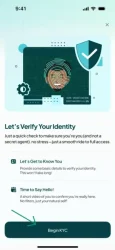
2. You’ll be taken to the KYC verification screen. Click ‘Begin KYC’ to get started.
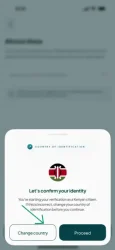
3. Next, you’ll be asked to either change your nationality or proceed with the one you selected when creating your account.
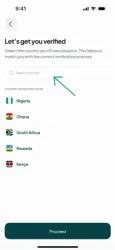
4. If you selected ‘Change country’, in step 3, you’ll be taken to a screen where you can search for and select your country. Once you’ve made your selection, click ‘Proceed’.
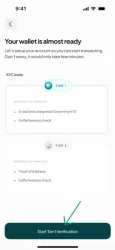
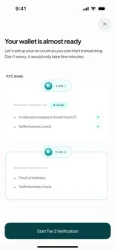
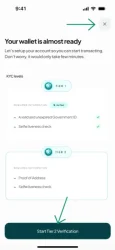
5. Whether you clicked on ‘Proceed’ in step 3 or 4 above, you’ll be taken to a screen showing the KYC tiers and their requirements. You must complete Tier 1 before proceeding to Tier 2. Click ‘Start Tier 1 verification’ to continue.
6. Once you click ‘Start Tier 1 Verification’, you’ll be directed to a page where you can upload your valid government-issued ID and complete a liveness check.
7. Once you’ve submitted your documents and completed the liveness check, you’ll be redirected back to the app. Checkmarks will appear to indicate that your submissions have been approved. Please note that document review can take anywhere from a few minutes to 24hrs.
8. Once you’ve completed Tier 1 KYC verification, you can either proceed to Tier 2 immediately (recommended) or click the close button in the top-right of your screen.
To complete Tier 2, simply follow the same process as Tier 1, providing the additional documents required.
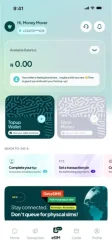
9. Once you’ve completed Tier 2 KYC verification or clicked the close button, you’ll be redirected to your Hizo home screen/dashboard.
Congratulations! You’re all set to start using Hizo. Now you can send money across Africa in your local currency, get the Hizo eSIM for your travels, or enjoy convenient online payments with the Hizo Global Card.
Tips for Successful KYC Verification
Use your original, valid government-issued ID✅, not a photocopy.❌
Upload your documents in a well-lit environment.
Ensure all details on your documents are clear and readable, not dark or blurry. Turn off your camera flash to avoid glare that could obscure information.
Make sure all four corners of your document are visible.
Do not upload edited or altered documents.❌
Your face must match the photo on your ID.
Need Help?
If you experience any issues while completing your KYC verification, our Customer Support team is here to help. Reach out to us at [email protected] and we’ll be happy to assist you.